
The sidebar provides the main navigation for the Intel Hub. It gives users quick access to key areas of the application, including the Home/map screen, incidents, entities, notifications, user and organization information, and other available tools based on their permissions.
Users can expand or collapse the sidebar by selecting the sidebar toggle button located just above the sidebar. When expanded, the sidebar displays the full navigation labels, making it easier to identify each section. When collapsed, the sidebar reduces to a compact icon-only view, giving users more screen space while still allowing quick navigation.
Home (Sidebar Button)
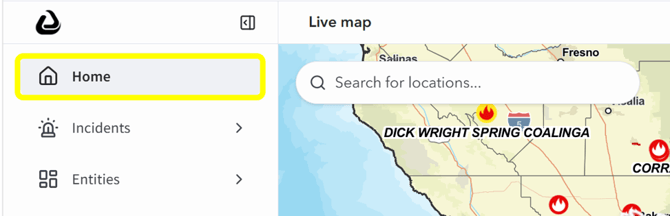
The Home button returns you to the main Intel Hub map screen from anywhere in the application. Use this option when you need to leave the current page, tool, or workflow and return to the primary map view.
Incidents (Sidebar)
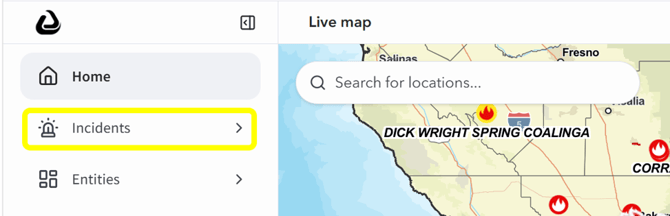
The Incidents section of the sidebar provides quick access to incidents within the system.
Selecting Incidents opens the main Incidents screen, where users can view, filter, open, create, and manage incidents.
The dropdown arrow next to Incidents can be used to expand or collapse the list of active incidents. When expanded, active incidents appear beneath the Incidents heading. Selecting an incident from this list opens the Incident Details screen for that specific incident.
Entities (Sidebar)
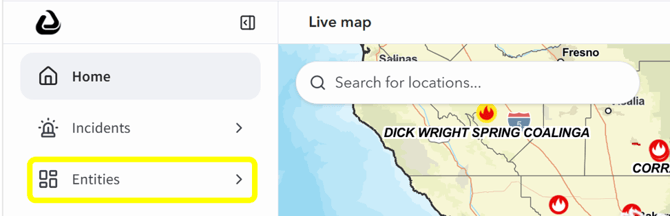
The Entities section provides access to additional records and data areas within the platform.
Selecting Entities opens the full Entities area, where users can access the entity types available to them based on role, permissions, and agency configuration.
The dropdown arrow next to Entities can be used to expand or collapse the configured shortcut list. When expanded, only the entity shortcuts selected for the sidebar appear beneath the Entities heading. This list does not necessarily include every available entity type.
Each agency may configure which shortcuts appear under Entities based on operational needs. As a result, the sidebar may look different between users or agencies.
Selecting a shortcut under Entities takes the user directly to that specific section. Because the shortcut list is configurable and may vary by agency, users should select Entities itself to access the full list of entity types available to them.
Depending on system configuration, permissions, and agency setup, the Entities module may include:
- Agencies
- Approval Requests
- Calls for Service
- Lookup Tables
- Personnel
- Stations
- Units
- Users
- Layer Configurations
- Layer Groups
- GIS Credentials
- Incidents
Items listed in the full Entities area may not all appear as sidebar shortcuts. The sidebar only displays the shortcuts configured for that agency or user role.
Some items available through Entities may also be available through Settings. When an item is primarily administrative, this guide introduces it briefly in the Entities section and covers the full workflow in the Settings section.