
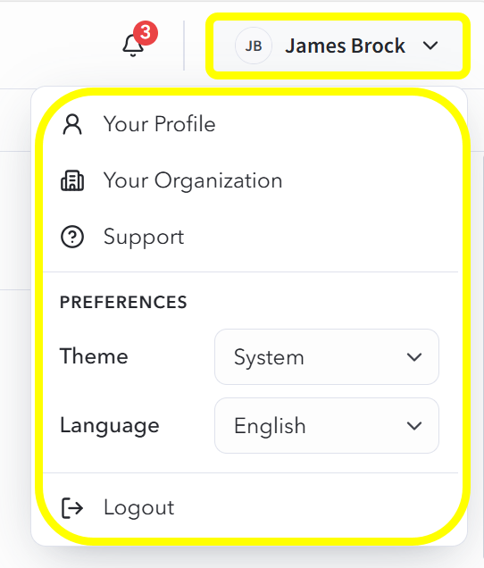
The User Menu is located in the top-right corner of the home screen and is identified by the logged-in user’s initials, name, and dropdown arrow.
Selecting the User Menu opens a dropdown with access to user and preference options, including:
- Your Profile: View user profile information
- Your Organization: View organization information
- Support: Access support resources
- Theme: Select the preferred display theme (System, Light, Dark)
- Language: Select the display language
- Logout: Sign out of the system
Your Profile
Selecting Your Profile from the User Menu opens the Profile page.
The Profile page displays information associated with the logged-in user’s account. This section may be used by the user to review their own account information. Some management options may only be available to users with the appropriate permissions.
The Profile page displays information associated with the logged-in user’s account. This section can be used to review account details, assigned roles, assigned groups, multi-factor information, and account-related events.
User Details
The User Details area displays basic account information for the user. This may include the user’s name, email address, primary phone number, account status, agency, member since date, and last login date.
Depending on permissions, a Manage option may be available on the Profile page at the top right. Available management actions include Edit User and Change Password.
Roles Tab
The Roles tab displays roles associated with the user account.
Roles help define what the user can access or perform within the platform. Users may be able to review role names and descriptions from this tab.
To review assigned roles:
- Open Your Profile.
- Select the Roles tab.
- Review the roles listed in the table.
The Roles table may include:
- Role name
- Description
Users can search the list, show or hide columns, or export the table depending on available options.
Groups Tab
The Groups tab displays groups associated with the user account.
Groups may be used to organize users and assign permissions or access levels.
To review assigned groups:
- Open Your Profile.
- Select the Groups tab.
- Review the groups listed in the table.
The Groups table may include:
- Group name
- Description
Users may also be able to search the list, show or hide columns, or export the table depending on available options.
Multi-Factor Tab
The Multi-Factor tab provides information related to multi-factor authentication for the user account.
Available information and actions may vary depending on system configuration and user permissions.
To review multi-factor information:
- Open Your Profile.
- Select the Multi-Factor tab.
- Review the available multi-factor information or options.
Events Tab
The Events tab displays account-related system events associated with the user profile. This may include activity related to the user account, depending on system configuration and permissions.
Table Tools
Several areas of the Profile page may include table tools. Depending on the tab and available permissions, users may be able to:
- Search within the table
- Show or hide columns
- Export table data
- Review listed records
If an option is not visible, the user may not have permission to access that function, or the function may not be enabled for that account.
Your Organization
Selecting Your Organization from the User Menu opens the organization information associated with the user’s current agency or tenant.
This area allows users with the appropriate permissions to review organization-level information, such as organization details, configuration information, and related administrative settings.
Access to organization information and available management actions may vary depending on user role, permissions, and agency configuration.
Organization management is covered in greater detail in the Settings section of this guide.