
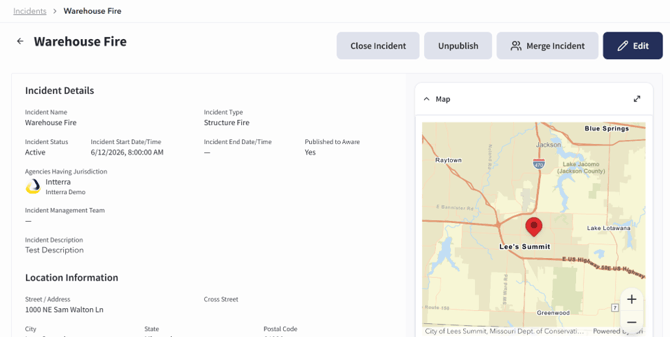
The Incident Details screen is accessed by selecting an individual incident from the Incidents screen.
The Incident Details screen displays information associated with the selected incident, including incident name, incident type, incident status, incident start date/time, incident end date/time, published status, agencies having jurisdiction, incident management team, incident description, and location information.
The screen also includes a map showing the incident location, an Attachments section, a View Links section, and additional incident-specific sections such as wildfire information or status updates when applicable.
The action buttons available at the top of the Incident Details screen depend on incident status, publication status, approval status, and user permissions.
The screen also includes operational and situational information, such as:
- Status updates related to the incident
- A map displaying the incident location and any associated geospatial layers
The Incident Details screen displays whether the incident has been published to Aware. If the incident has not been published, this value displays as Not Published. When approval is pending, a Pending Approval status appears near the published status.