
The Approval Requests section provides a centralized location for reviewing and managing content that requires approval before being shared externally.
This section is primarily intended for users with approval permissions, such as supervisors, approvers, system administrators, or other authorized users. Users designated to approve Aware content must have the Aware Approver role assigned either directly or through a group. Access to this section and available approval actions may vary depending on user role, permissions, approval stage, and agency configuration.
Approval Requests help ensure that public-facing information is reviewed before it is published, updated, closed, or otherwise changed. This supports accountability, consistency, and appropriate release of information.
Within this section, authorized users may be able to:
- View approval requests
- Search for approval requests
- Filter or adjust the approval request table
- Review pending, approved, and rejected requests
- Open related incident records when available
- Review request status, stage, submitter, submitted date, and decision history
- Approve or reject requests
Main Approval Requests Screen
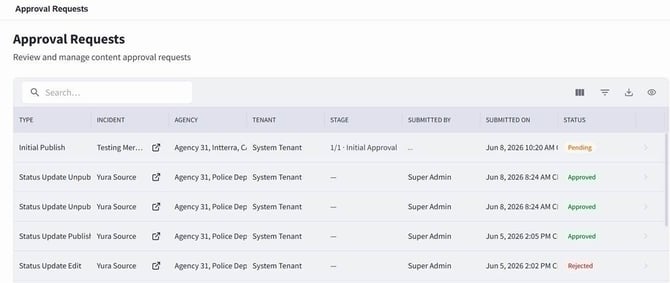
The Approval Requests screen can be accessed by selecting Entities, then choosing Approval Requests. If configured as a sidebar shortcut, Approval Requests may also be accessed directly from the sidebar.
The Approval Requests screen displays approval requests in a list view. Each approval request appears as a row in the table.
Searching for an Approval Request
To search for an approval request:
- Open the Approval Requests screen.
- Select the search bar near the top of the approval request list.
- Enter search text.
- Review the filtered results in the approval request table.
- Select the appropriate approval request to review additional details.
Review Panel
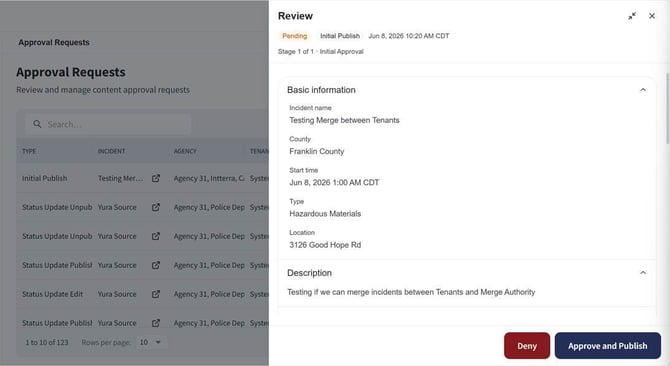
The Review Panel appears when a user selects an approval request from the Approval Requests screen. It provides a detailed view of the selected request so the approver can review the submitted content before taking action.
The Review Panel may contain information such as the request status, request type, submitted date and time, approval stage, current stage approvers, approver agency, approver status, decision information, and any related incident information. From this panel, users with the appropriate permissions can approve and publish the request or deny the request.
Reviewing an Approval Request
To review an approval request:
- Open the Approval Requests screen.
- Locate the approval request in the list.
- Select the approval request row or available review action.
- The Review panel will appear on the right side of the screen.
- Review the approval request details in the review panel.
- If available, open the related incident record to review additional context before taking action.
The review panel displays the information needed to evaluate the approval request, including request details, approval status, approver information, and related incident information when available.
Approving or Denying an Approval Request
Note: The approval process can be completed from the Approval Requests section or from within the associated incident itself. Approval actions from within an incident are covered later in this guide.
Users with the appropriate permissions may approve or deny an approval request from the review panel.
To approve or reject an approval request from the Approval Requests section:
- Open the Approval Requests screen.
- Locate the approval request you need to review.
- Select the approval request to open the review pane.
- Review the information displayed in the review pane.
- If available, open the related incident record to review additional context before taking action.
- Choose the appropriate action:
-
- Select Approve and Publish to approve the request and publish the submitted content.
- Select Deny to reject the request.
If the request is denied, a Reject Request box will appear. Enter the reason the request is being rejected, then select Reject.
After the request is rejected, the user who submitted the content will be notified of the rejection reason. This allows the submitter to understand what needs to be corrected before resubmitting the content for approval.
Before approving or rejecting a request, users should review the request details and any related incident information available to them. This helps ensure approval decisions are made with the proper context.
Approval History
The Approval Requests section also serves as a record of approval activity within the system.
Users may be able to review past approval requests to see:
- What content was submitted for approval
- Whether the request was approved, rejected, or remains pending
- When the request was submitted or processed
- Which users or approvers were involved in the approval process
Before approving or rejecting a request, users should review the request details and any related incident information available to them. This helps ensure approval decisions are made with the proper context.