
The Personnel section is used to view and manage personnel records within the Aware Intel Hub.
Personnel records represent individuals who may need to be referenced, tracked, or assigned within the platform. Personnel may include agency staff, responders, command staff, support personnel, partner agency members, or other individuals who may be associated with operational resources or activity.
Personnel are not necessarily users of the system. A user is someone who can sign in to the Aware Intel Hub. A personnel record represents a person who may be assigned to units, stations, incidents, agencies, or other items within the platform for operational tracking and reference purposes.
This section is primarily intended for system administrators or users with personnel management permissions. Access to this section and available actions may vary depending on user role, permissions, and agency configuration.
Personnel Management Screen
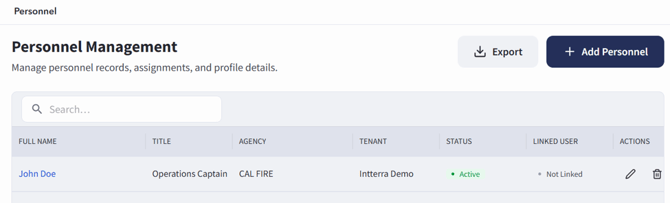
The Personnel Management screen can be accessed by selecting Entities, then choosing Personnel. If configured as a sidebar shortcut, Personnel may also be accessed directly from the sidebar.
The Personnel Management screen displays personnel records in a list view. Each personnel record appears as a row in the table.
Users can select a personnel record from the list to open and review additional details.
Users can choose to edit or delete personnel from the Personnel Management screen using the appropriate icons in the Actions column.
Searching for Personnel
To search for personnel:
- Open the Personnel screen.
- Select the search bar near the top of the personnel list.
- Enter the person’s name or other available search information.
- Review the filtered results in the personnel table.
- Select a personnel record to open additional details.
Adding Personnel
Users with the appropriate permissions may add new personnel records.
To add personnel:
- Open the Personnel screen.
- Select + Add Personnel.
- Complete the required personnel information. Required fields are identified with a red *.
- Enter any additional details available on the form.
- If the personnel being added is also a user with a login to the Intel Hub, ensure the personnel profile is linked to the user profile using the Search and Link User Profile button.
- Select Create Personnel at the bottom of the page.
- Review the new personnel record after it has been created.
Opening a Personnel Record
To open an existing personnel record:
- Open the Personnel screen.
- Locate the person in the list.
- Select the personnel record.
- Review the information displayed on the personnel detail page.
The personnel detail page displays information associated with the selected person. Available information may vary depending on agency configuration and the data entered for that personnel record.
Editing Personnel
Users with the appropriate permissions may edit existing personnel records.
- Personnel can be edited in two ways:
- From the Personnel Management Screen, select the Edit button, shown as a pencil icon, in the Actions column next to the personnel record.
- From the Personnel Management Screen, select the personnel record to open the personnel detail page, then select Edit in the top-right corner of the page.
- When finished editing, select Update Personnel at the bottom-right of the screen.