
The Stations section is used to manage station records, staffing, and service status.
Station records represent physical station locations or operational facilities associated with an agency. Stations can be used to support unit assignment, staffing awareness, station location reference, and operational organization within the Aware Intel Hub.
This section is primarily intended for system administrators or users with station management permissions. Access to this section and available actions depend on user role, permissions, and agency configuration.
Station Management Screen
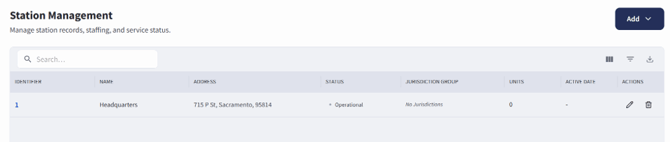
The Station Management screen can be accessed by selecting Entities, then choosing Stations. If configured as a sidebar shortcut, Stations can also be accessed directly from the sidebar.
The Station Management screen includes a searchable table of station records, along with tools to add stations, adjust the table view, filter results, export data, and move between pages of results.
If no station records have been created, the table displays No data available.
Searching for Stations
To search for a station:
- Open the Stations section.
- Use the search bar on the Station Management screen.
- Enter the station name, identifier, address, or other available search information.
- Review the filtered results in the station table.
- Select the station record to review additional details.
Adding a Station
Users with the appropriate permissions can add a new station from the Station Management screen.
To add a station:
- Open the Stations section.
- Select Add from the top right.
- Select Add New Station.
- Complete the fields provided. Required fields marked with an asterisk (*).
- Select Create Station at the bottom-right corner of the page.
The Add New Station page includes a message stating that all required fields marked with an asterisk (*) must be completed and that the user must provide either a complete address or coordinates for the station location.
Add Bulk Stations
Stations can also be added by bulk upload.
To bulk upload stations:
- Open the Stations section.
- Select Add.
- Select the Add Bulk Stations option.
- Select the appropriate agency from the Bulk Upload/Import Stations screen.
- Select Upload CSV File and then upload a CSV file by browsing for the file or dragging and dropping the file into the upload area.
-
- A CSV template can be downloaded by selecting Download CSV Template below the Upload CSV File region of the screen.
- Ensure to follow the CSV format requirements listed next to the Download CSV Template button.
- Select Next after the file has been added.
- The next screen provides an opportunity to review the fields before uploading. Ensure to review the fields for accuracy then select Next at the bottom of the screen.
- The final screen will show what data will be uploaded. Select Upload Stations to complete the process.
The Bulk Upload screen includes the following CSV format requirements:
- Use column headers that match the template, including name, identifier, address fields, coordinates, status, and dates.
- Station name and identifier are required.
- Provide a full address or latitude and longitude for placement.
- Identifier values must be unique within the upload.
- Dates accept YYYY-MM-DD or MM/DD/YYYY format.
Station Details Screen
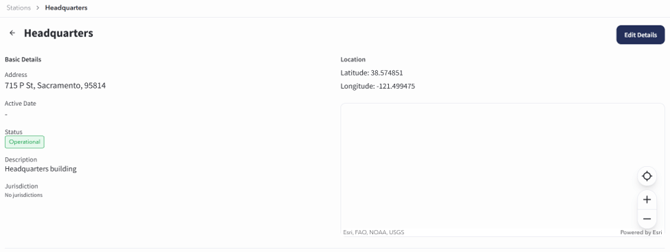
Opening an existing station record takes you to the Station Details Screen.
To open an existing station record:
- Open the Stations section.
- Locate the station in the Station Management table.
- Select the station record.
The station detail page displays information associated with the selected station, including address, active date, status, description, jurisdiction, map location, and assigned units.
Editing a Station
Users with the appropriate permissions can edit existing station records.
Stations can be edited from the Station Management screen or from the Station Details screen.
To edit a station from the Station Management screen:
- Open the Stations section.
- Locate the station record that needs to be updated.
- In the Actions column, select the Edit button, shown as a pencil icon.
- Update the necessary station information.
- Select Update Station at the bottom-right corner of the page.
- Review the station record to confirm the updates were applied.
To edit a station from the station detail page:
- Open the Stations section.
- Select the station record you want to update.
- Review the station detail page.
- Select Edit in the top-right corner.
- Update the necessary station information.
- Select Update Station at the bottom-right corner of the page.
- Review the station record to confirm the updates were applied.