
The Units section is used to manage trackable units within the Aware Intel Hub.
Units are trackable items associated with an agency. In most cases, units are vehicles such as engines, ambulances, command vehicles, patrol vehicles, or other response apparatus. Units can also represent other trackable items when they are configured for location tracking, such as GPS-enabled portable radios or specialized equipment.
Unit records support operational awareness by allowing agencies to track unit identity, capability, assignment, location, and availability within the platform.
Much of the unit information can be brought into the Aware Intel Hub through a CAD integration. When a CAD integration is configured, unit details, status, assignments, and location-related information can be populated from CAD rather than entered manually.
This section is primarily intended for system administrators or users with unit management permissions. Access to this section and available actions depend on user role, permissions, and agency configuration.
Unit Management Screen
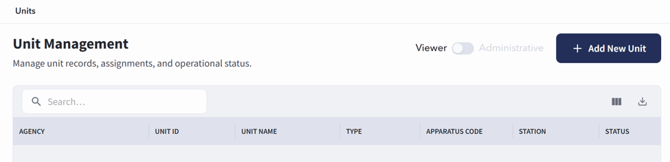
The Unit Management screen can be accessed by selecting Entities, then choosing Units. If configured as a sidebar shortcut, Units can also be accessed directly from the sidebar.
The Unit Management screen displays unit records in a table.
The Viewer / Administrative toggle changes the table interaction mode. When Administrative mode is selected, checkboxes are displayed on the left side of the unit table. These checkboxes allow unit records to be selected for administrative actions.
Searching for Units
To search for a unit:
- Open the Units section.
- Use the search bar on the Unit Management screen.
- Enter the unit name, identifier, call sign, unit type, or other available search information.
- Review the filtered results in the unit table.
- Select the unit record to review additional details.
Adding a Unit
Users with the appropriate permissions can add a new unit from the Unit Management screen.
To add a unit:
- Open the Units section.
- Select + Add New Unit from the top right.
- Complete the fields provided on the Add Unit Configuration screen. Required fields are marked with a red asterisk (*).
- Review the configuration settings at the bottom of the screen.
- Select Create Unit at the bottom-right corner of the page.
The Add Unit Configuration screen is used to enter unit identity, capability, agency association, assignment, location, and configuration information.
The Add Unit Configuration screen includes fields and configuration options for the unit record. Required fields are marked with a red asterisk (*).
The Show Vehicle in SITSTAT toggle controls whether the unit is shown in SITSTAT.
The Estimate Drive Times toggle controls whether drive time estimates are calculated for the unit.
The Coverage Flags toggle controls whether coverage flags are enabled for the unit. Coverage flags indicate the unit’s coverage and availability.
EMS Capability and Ambulance Type
When completing the Add Unit Configuration screen, the available fields can change based on the selected unit capabilities. If an ambulance option is selected from the EMS Capability dropdown, the Ambulance Type field becomes available. Use the Ambulance Type field to define the ambulance classification for the unit.
Unit Details Screen
Opening an existing unit record takes you to the Unit Details Screen.
To open an existing unit record:
- Open the Units section.
- Locate the unit in the Unit Management table.
- Select the unit record.
The Unit Details Screen displays information associated with the selected unit, including unit identity, agency association, capability information, assignment information, configuration settings, location information, and related operational details.
The Unit Details Screen includes an Edit and Delete buttons in the top-right corner and a Delete button in the top-right corner.
Editing a Unit
Users with the appropriate permissions can edit existing unit records.
Units can be edited from the Unit Details Screen.
To edit a unit:
- Open the Units section.
- Select the unit record you want to update.
- Review the Unit Details Screen.
- Select Edit in the top-right corner.
- Update the necessary unit information.
- Select Update Unit at the bottom-right corner of the page.
- Review the unit record to confirm the updates were applied.
Deleting a Unit
Users with the appropriate permissions can delete a unit from the Unit Details Screen.
To delete a unit:
- Open the Units section.
- Select the unit record you want to delete.
- Review the Unit Details Screen.
- Select Delete in the top-right corner.
- Confirm the deletion when prompted.
Deleting a unit removes the unit record from the system. Users should confirm the correct unit has been selected before deleting the record.