
The Layer Groups section is used to organize layer configurations into groups.
Layer groups allow related map layers to be grouped together so they can be managed and presented more clearly within the platform. A layer group can include one or more configured layers. This helps agencies organize layers by purpose, category, operational use, or map display needs.
This section is primarily intended for system administrators or users with layer group management permissions. Access to this section and available actions depend on user role, permissions, and agency configuration.
Layer Groups Screen
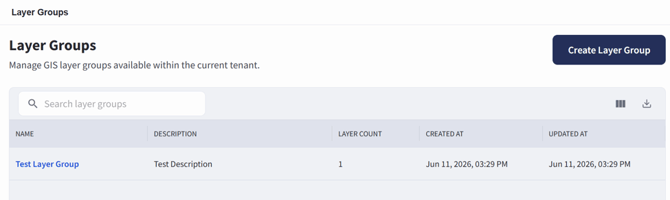
The Layer Groups screen can be accessed by selecting Entities, then choosing Layer Groups. If configured as a sidebar shortcut, Layer Groups can also be accessed directly from the sidebar.
The Layer Groups screen displays existing layer groups in a table.
Searching for Layer Groups
To search for a layer group:
- Open the Layer Groups section.
- Use the search bar on the Layer Groups screen.
- Enter the layer group name or other available search information.
- Review the filtered results in the layer groups table.
- Select the layer group name to review additional details.
Creating a Layer Group
Users with the appropriate permissions can create a new layer group from the Layer Groups screen.
To create a layer group:
- Open the Layer Groups section.
- Select Create Layer Group from the top right.
- Enter the layer group name.
- Enter a description for the layer group.
- Add the layers that should be included in the group.
- Select Create Layer Group at the bottom-right corner of the page.
Layer groups should be named clearly so users can understand what type of layers are included in the group.
Layer Group Details Screen
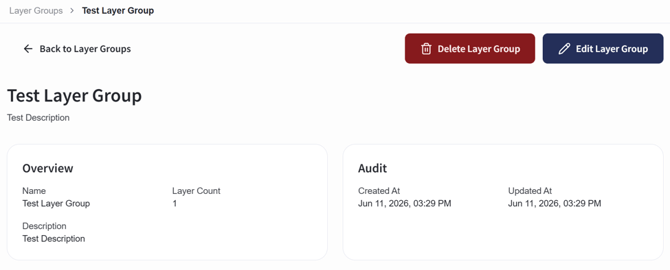
Opening an existing layer group takes you to the Layer Group Details Screen.
To open an existing layer group:
- Open the Layer Groups section.
- Locate the layer group in the Layer Groups table.
- Select the layer group name.
The Layer Group Details Screen displays information associated with the selected layer group.
The Layer Group Details Screen includes:
- An overview of the layer group
- Audit information showing when the layer group was created and when it was last updated
- A table showing the layers included in the group
The Layer Group Details Screen includes a Delete Layer Group button in the top-right corner and an Edit Layer Group button in the top-right corner.
Editing a Layer Group
Users with the appropriate permissions can edit existing layer groups.
To edit a layer group:
- Open the Layer Groups section.
- Select the layer group you want to update.
- Select Edit Layer Group in the top-right corner.
- Update the layer group name, description, or included layers.
- Select the update option at the bottom-right corner of the page.
- Review the layer group record to confirm the updates were applied.
Deleting a Layer Group
Users with the appropriate permissions can delete a layer group from the Layer Group Details Screen.
To delete a layer group:
- Open the Layer Groups section.
- Select the layer group you want to delete.
- Review the Layer Group Details Screen.
- Select Delete Layer Group in the top-right corner.
- Confirm the deletion when prompted.
Deleting a layer group removes the group record from the system. Users should confirm the correct layer group has been selected before deleting it.