
The Calls for Service Statuses section allows agencies to control whether each Call for Service source status is treated as Active or Closed within the Aware Intel Hub. These assignments directly affect the Active and Closed filtering available on the Calls for Service screen under Entities.
This section is primarily intended for system administrators or users with the appropriate configuration permissions. Access to this section and available actions depend on user role, permissions, and agency configuration.
Calls for Service Statuses Screen
The Calls for Service Statuses screen can be accessed by selecting Settings, then choosing Calls for Service Statuses under System Configuration.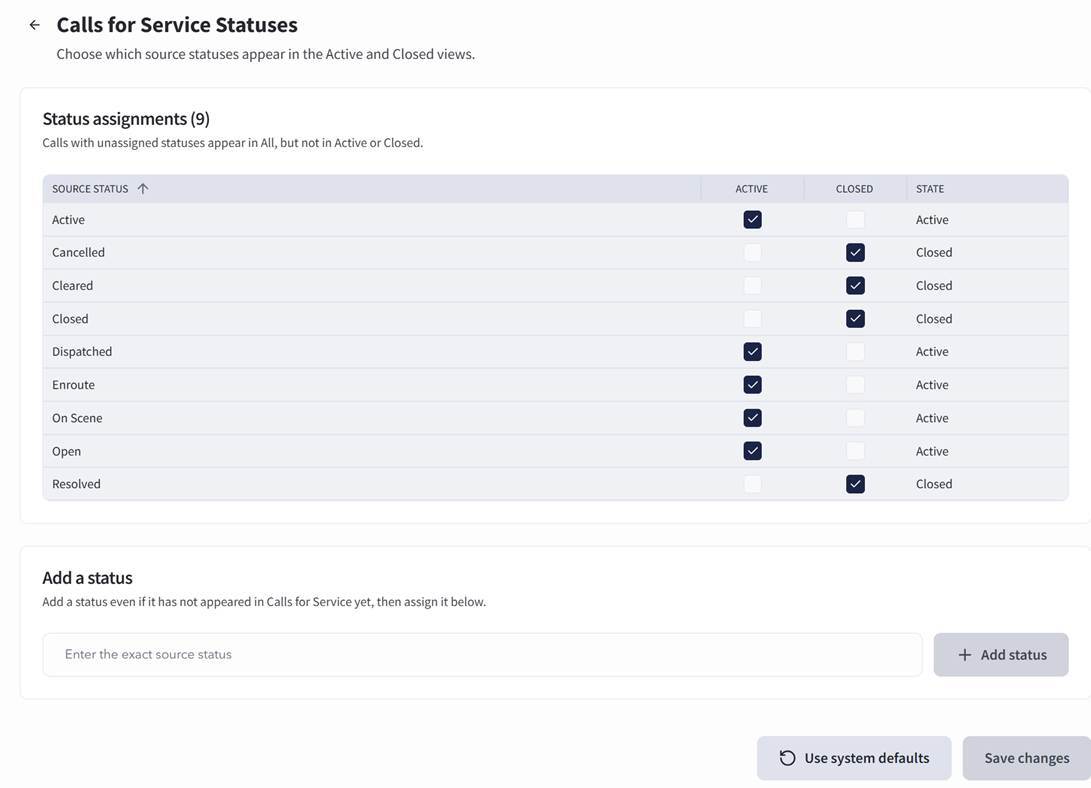
The Status Assignments table displays each available Source Status and its current Active or Closed assignment.
The Source Status list includes:
- Default statuses provided by Intterra
- Statuses received through the integration with the agency’s Computer-Aided Dispatch (CAD) system
- Statuses manually added by an authorized user
Default statuses provided by Intterra are automatically assigned as Active or Closed. These default assignments can be changed based on the agency’s operational needs.
Statuses received from the agency’s CAD integration are automatically added to the Source Status list. However, newly received CAD statuses are not automatically assigned as Active or Closed. An authorized user must assign each new status before it will appear when filtering Calls for Service by Active or Closed.
Calls with an unassigned source status appear when viewing all Calls for Service but do not appear in the Active or Closed filtered results.
Assigning a Source Status
To assign or change a source status:
- Locate the status in the Status Assignments table.
- Select either Active or Closed for that status.
- Review the assignment to confirm that the correct option is selected.
- Select Save Changes in the bottom-right corner.
Each source status should be assigned as either Active or Closed based on how the agency wants Calls for Service with that status categorized within the Intel Hub.
Adding a Status Manually
A source status can be added manually before it is received through the agency’s CAD integration. This allows the agency to configure a known CAD status proactively.
To add a status manually:
- Locate the Add a Status section.
- Enter the source status exactly as it appears in the agency’s CAD system.
- Verify that the spelling, capitalization, spacing, and punctuation match the CAD status verbatim.
- Select + Add Status.
- Assign the newly added status as Active or Closed.
- Select Save Changes.
Important: Selecting + Add Status immediately adds the entered status. Carefully verify the entry before selecting the button.
Using System Defaults
Selecting Use System Defaults restores the default Active or Closed assignments for statuses provided by Intterra.
This action does not remove source statuses received through the agency’s CAD integration. However, it removes the Active or Closed assignments from those additional CAD statuses. Each affected CAD status must then be reassigned manually.
After reviewing and updating the assignments, select Save Changes.