
The Layer Configurations section is used to manage GIS-managed layers available within the current tenant.
Layer configurations control how GIS layers are connected, displayed, and made available within the map experience. These settings help determine layer source information, display behavior, child layers, capabilities, fields, labels, and advanced layer behavior.
This section is primarily intended for system administrators or users with layer configuration permissions. Access to this section and available actions depend on user role, permissions, and agency configuration.
Layer Configurations Screen
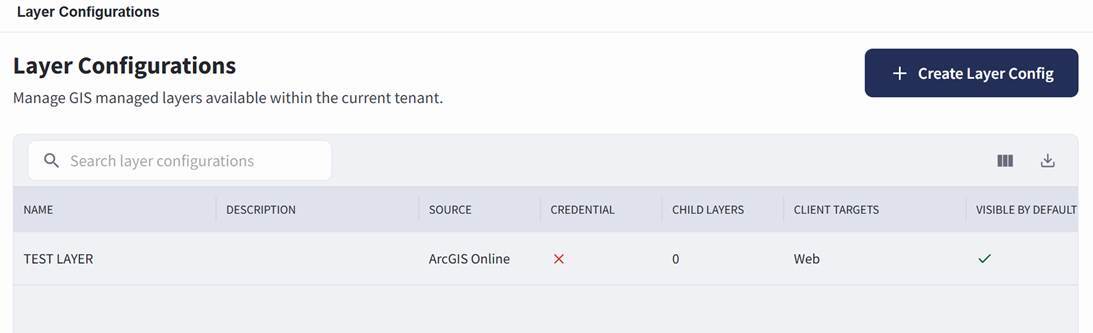
The Layer Configurations screen can be accessed by selecting Settings, then choosing Layer Configurations.
The Layer Configurations screen displays layer configuration records in a table.
If no layer configuration records have been created, the table displays No data available.
After layer configurations have been created, each layer appears as a row in the Layer Configurations table. The More Options menu, shown as three vertical dots at the far right of each row, provides quick access to available actions such as View and Edit.
Searching for Layer Configurations
To search for a layer configuration:
- Open the Layer Configurations section.
- Use the search bar on the Layer Configurations screen.
- Enter the layer name or other available search information.
- Review the filtered results in the layer configuration table.
- Select the layer configuration record to review additional details.
Creating a Layer Configuration
Users with the appropriate permissions can create a new layer configuration from the Layer Configurations screen.
To create a layer configuration:
- Open the Layer Configurations section.
- Select + Create Layer Config from the top right.
- Complete the fields provided on the Create Layer Config screen. Required fields are marked with an asterisk (*).
- Configure the available layer settings.
- Select Create Layer Config to create the layer configuration.
The Create Layer Config screen includes Basic Details and several configuration tabs.
The Basic Details section includes:
- Layer Name
- Source Type
- Source URL
- Credential
- Client Targets
The Layer Name and Source URL fields are required.
The Source Type field displays the GIS source type for the layer.
The Credential area includes:
- Select Credential – Selecting this provides a dropdown box for a credential to be selected.
- Remove Credential – Allows for the removal of a credential.
The Client Targets field identifies where the layer is available. The following options are available: Web, Mobile, Pro, Global.
A Visible by Default toggle switch allows the user to make the layer visible by default.
A Description box allows the user to enter an overall description of the layer.
The Attribution box is used to enter credit or source information for the layer. This can include the data provider, source agency, licensing note, or other attribution text that should be associated with the layer.
Use this field when the layer data requires source credit or when users need to understand where the layer information originated.
Display Settings Tab
The Display Settings tab controls scale, zoom, and transparency behavior for the layer.
Child Layers Tab
The Child Layers tab is used to configure child layers associated with the layer configuration.
If no child layers have been added, the tab displays No child layers added.
Capabilities Tab
The Capabilities tab is used to configure capability settings for the layer.
Capabilities determine which layer functions are supported and how the layer can be used within the platform. This can include functionality related to querying, editing support, spatial reference handling, rendering behavior, and other GIS layer capabilities.
Fields Tab
The Fields tab is used to configure fields associated with the layer. Fields can be added by selecting Add Fields.
If no fields have been added, the tab displays No fields added.
Label Configuration Tab
The Label Configuration tab is used to configure labeling behavior for the layer.
Use this tab to review and configure how labels are handled for the layer configuration.
Toggling on Use Custom Label Configuration provides additional label fields and options.
Toggling on Use Custom Styling provides additional label styling options.
Advanced Tab
The Advanced tab is used to configure advanced layer settings.
Use this tab to review and configure additional layer behavior not handled in the other configuration tabs.
Layer Details Screen
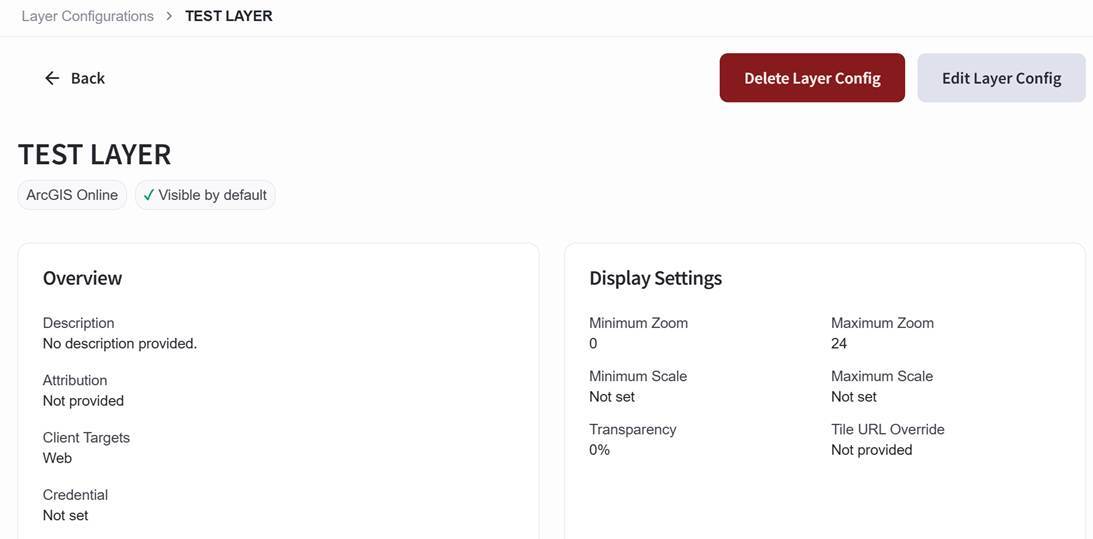
Opening an existing layer configuration record takes you to the Layer Details Screen.
To open an existing layer configuration record:
- Open the Layer Configurations section.
- Locate the layer configuration in the Layer Configurations table.
- Select the layer configuration record.
A layer configuration can also be opened by selecting the More Options menu, shown as three vertical dots, and choosing View.
The Layer Details Screen provides an overview of the selected layer configuration. This screen includes the layer’s basic configuration information and additional sections for display settings, capabilities, configured fields, child layers, full extent, label configuration, and audit information.
The Layer Details Screen includes a Delete Layer Config button in the top-right corner and an Edit Layer Configuration button in the top-right corner.
Editing a Layer Configuration
Users with the appropriate permissions can edit existing layer configuration records.
Layer configurations can be edited in two ways:
- From the Layer Configurations screen, select the More Options menu, shown as three vertical dots, then select Edit.
- From the Layer Details Screen, select Edit Layer Configuration in the top-right corner.
- Select Save Changes when complete.
Deleting a Layer Configuration
Users with the appropriate permissions can delete a layer configuration from the Layer Details Screen.
To delete a layer configuration:
- Open the Layer Configurations section.
- Select the layer configuration record you want to delete.
- Review the Layer Details Screen.
- Select Delete Layer Config in the top-right corner.
- Confirm the deletion when prompted.